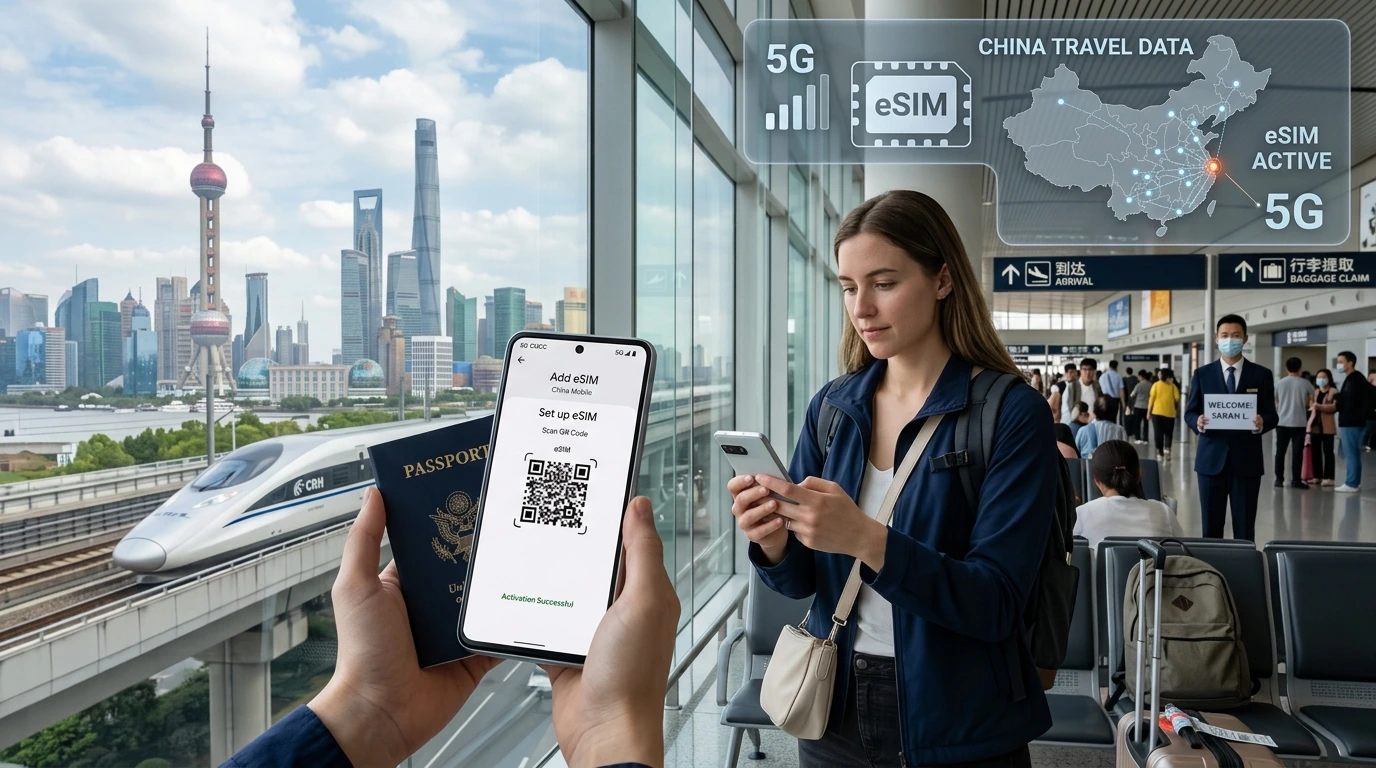
If your travel eSIM QR code won’t install, follow this quick checklist to get reconnected: restart, toggle airplane mode, check device support, or install manually with SM‑DP+ and activation code. Contact NexaEsim if the QR is expired or single‑use.
Travel eSIM QR code not working fix: follow these fast steps to install or recover your NexaEsim profile and get online while traveling.
Quick Answer
If your travel eSIM QR code won’t install, first restart the phone, toggle Airplane Mode on and off, and try scanning again. If that fails, confirm the device is eSIM‑capable and carrier‑unlocked, verify the QR wasn’t already used or expired, and try manual installation using the SM‑DP+ address and activation code. If the QR is single‑use or expired, contact NexaEsim support with your order number, device model, OS version, and a screenshot of the error for a replacement.
Quick fixes (2–3 minute checklist)
Restart, toggle Airplane Mode, and retry scanning
Power off/on, or toggle Airplane Mode for 10 seconds, then open the camera and scan the QR again. Small OS glitches often clear with a restart.
Ensure device supports eSIM and is unlocked
Check if your model supports eSIM and that it's not carrier-locked. See NexaEsim's compatible devices page for details: https://nexaesim.com/compatible-devices
Check for one-time or expired QR — was it already used?
Many eSIM QRs are single‑use and may expire after activation or a set time. If you already installed a profile, you may need to remove it before reinstalling, or request a reissue.
Try manual installation (SM‑DP+ and Activation Code)
If scanning fails, use manual install: open Settings > Add Cellular Plan > Enter SM‑DP+ address and Activation Code supplied in your NexaEsim email. Example format (fake values): SM‑DP+ 'esim.nexae.example.com' Activation Code 'AB12‑CD34‑EF56'.
Error messages & what they mean
| Error message | Likely cause | Quick action |
|---|---|---|
| This code is no longer valid | QR expired or already used | Check your order, find the activation timestamp, contact NexaEsim for reissue |
| Cellular plans from this carrier cannot be added | Device carrier-locked or OS restriction | Verify unlock status with your carrier |
| No usable data found | Incomplete eSIM payload or network provisioning error | Try manual install or request server re-provision from NexaEsim |
| Unable to Activate eSIM / eSIM Cannot Be Added | Multiple causes: connectivity, device compatibility, expired code | Follow step-by-step OS fixes below |
Step-by-step fixes by OS
iPhone (iOS)
- Open Camera, point at the QR. Tap the notification to add cellular plan.
- Or go to Settings > Cellular (Mobile Data) > Add Cellular Plan and scan the QR.
- If scanning fails, choose Enter Details Manually and add SM‑DP+ and Activation Code.
- After install: Settings > Cellular > your eSIM > Enable Data Roaming if traveling.
- If you see 'This code is no longer valid', remove any duplicate profile and contact support.
Android (Pixel, Samsung, others)
- Open Settings > Network & internet > Mobile network > Add carrier or Add eSIM.
- Scan QR or choose manual add to paste SM‑DP+ and Activation Code.
- On Samsung, use Settings > Connections > SIM card manager > Add mobile plan.
- If QR directs to a link, open it in the same device's browser and follow the prompt to install.
Manual install using SM‑DP+ and Activation Code
Formatting matters: SM‑DP+ looks like a URL (no protocol required). Activation Code is usually alphanumeric with dashes. Example (fake): SM‑DP+ 'esim.nexae.example.com' Activation Code 'AB12‑CD34‑EF56'. Copy exactly as provided in your NexaEsim email.
Camera & QR file troubleshooting (scanning problems)
Image quality, cropping, contrast, print vs screen
- Ensure the QR is not zoomed/cropped. Show the whole code in the frame.
- Increase screen brightness or print the QR at high contrast.
- Remove screen protectors or fingerprints that may obscure the code.
Try another device to scan / open link on same device
Scan the QR with a second phone to get the link, then email the activation link to the target device or open it in the same phone's browser.
Network & phone settings to check
Carrier lock check and how to confirm
Use Settings or contact your original carrier to confirm the phone is unlocked for eSIM use. Some carrier-locked phones block third-party eSIM profiles.
Reset network settings, OS updates, SIM profile deletion caveats
- Try Settings > General > Transfer or Reset > Reset > Reset Network Settings (iOS) or similar on Android.
- Update iOS/Android to the latest stable release before trying again.
- When deleting profiles, note that single-use QRs may not be reusable after a deletion.
APN settings & turning on Data Roaming
If installed but no data, check APN values in your plan info and enable Data Roaming while abroad.
When the QR is single-use or expired — what to do next
How/when we can reissue QR codes (NexaEsim policy summary + CTA)
If your QR expired or was used accidentally, NexaEsim can typically reissue or republish a replacement QR after verifying your order. To request a replacement, contact NexaEsim support with the order number, device model, OS version, exact error text, and a screenshot. If you need a new plan or replacement immediately, view eSIM plans for 200+ destinations: https://nexaesim.com/allcountries
Support templates and information to include in your support request
Use this quick support template (copy and paste)
Subject: QR not working / reissue request
Order #: [your order number]
Device: [brand + model]
OS & version: [iOS 16.4 / Android 13]
Error message: [paste exact text]
Time & timezone: [when scanned]
Screenshot attached: [yes/no]
Request to reissue (short)
Hi NexaEsim, my eSIM QR expired or was used accidentally. Please reissue the QR for Order # [order id]. Device: [model]. OS: [version]. Reason: [brief]. Thanks.
Preventative pre-travel checklist
- Install and test your eSIM at home with Wi‑Fi available.
- Take screenshots of your QR, SM‑DP+ and Activation Code and save them offline.
- Note your order number and save NexaEsim support contact details.
- Enable automatic OS updates and check device unlock status.
- Backup the eSIM activation link in your email or account dashboard.
NexaEsim support & commercial options
NexaEsim support can reissue QRs, troubleshoot activation problems, or help you choose a fallback plan. For immediate replacements or to compare plans by destination, visit our product page: https://nexaesim.com/allcountries. For detailed install instructions, see our installation guide: https://nexaesim.com/installation-guide
Note on SLA: Include order details in your initial message to speed resolution. Most reissues are processed during support hours; attach screenshots for fastest service.
FAQ
Will re-scanning the same eSIM QR work?
Sometimes — if the QR is multi-use and the profile was not fully installed before. If it was single‑use or already provisioned on the activation server, re-scanning will fail and you should request a reissue.
What does 'This code is no longer valid' mean?
It usually means the QR expired or was already used. Check the timestamp in your order email and contact NexaEsim for reissue options.
Can I install an eSIM on a carrier-locked phone?
Most carrier-locked phones block third‑party eSIMs. Confirm unlock status with your carrier before purchasing a travel eSIM.
How do I add an eSIM manually (SM‑DP+ & activation code)?
On iPhone: Settings > Cellular > Add Cellular Plan > Enter Details Manually. On Android: Settings > Network & internet > Mobile network > Add carrier > Enter SM‑DP+ and Activation Code as provided by NexaEsim.
Why does my phone say 'No usable data found' after scanning?
This indicates the profile payload is incomplete or the activation server did not provision correctly. Try manual install or contact NexaEsim support with error screenshots for server-side troubleshooting.
How long do NexaEsim QR codes remain valid?
Validity varies by plan; check your confirmation email. If you are unsure, contact NexaEsim support before travel.
Can NexaEsim reissue a QR if it was used or expired on accident?
Yes — after verifying your order and circumstances, NexaEsim can often reissue a QR or provide an alternate solution. Include order info and screenshots to speed the process.
Editorial note / Byline
By NexaEsim Support Team. Last updated: 2026-05-21. This guide is intended to help with common activation issues; for device-specific screenshots and an annotated recovery flow, check our blog: https://nexaesim.com/blog