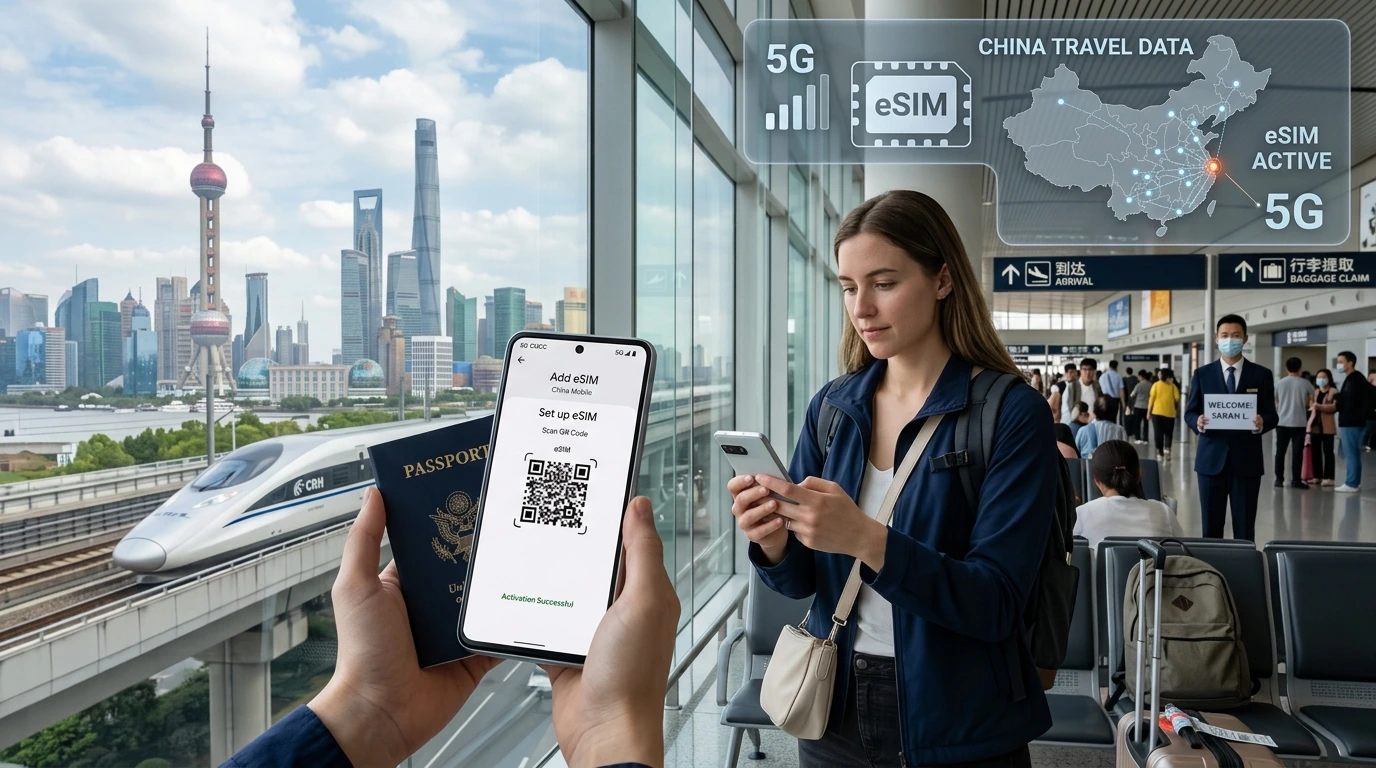
Clear, device-specific steps to install your travel eSIM with a QR code, plus troubleshooting, security tips and how NexaEsim delivers your QR.
How to install travel eSIM with QR code — Quick Answer: connect to Wi‑Fi, open Settings → Cellular (iPhone) or Network & internet → Mobile network (Android), choose Add eSIM / Add Carrier and scan the QR code from your NexaEsim order email. Follow prompts and enter the confirmation/activation code if requested, then enable the new line and Data Roaming.
Quick Answer — 30‑second install
- Open the NexaEsim email and have the QR code ready (or PDF on another device).
- iPhone: Settings → Cellular → Add Cellular Plan → Scan QR. Android (Pixel/Samsung): Settings → Network & internet / Connections → Add carrier → Scan QR.
- Accept prompts, enter the confirmation code if asked, then label the eSIM and enable it for data. Turn on Data Roaming for international use.
- If scanning fails, use the manual SM‑DP+ address and activation code from the order email.
Before you start — prerequisites & compatibility
Supported devices & OS versions
Most modern iPhones, Pixels, Samsung Galaxy phones and recent tablets support eSIM. Check your exact model and OS version on our Check device compatibility page before you buy.
What you’ll need
- An unlocked device that supports eSIM
- Stable Wi‑Fi for the initial install (or mobile data if you already have connectivity)
- The QR code or PDF delivered in your NexaEsim order email or account
- SM‑DP+ address and activation code (included in the order if scanning isn’t possible)
Single‑use QR code and safety tips
Treat the QR like a password. Do not post it publicly or share it. Save the PDF in your NexaEsim account and keep a copy offline for travel. If you lose access, contact NexaEsim Support to request help.
How to install on iPhone (step‑by‑step)
These steps cover iOS devices; menu names may vary slightly by iOS version.
- Open Settings → Cellular (or Mobile Data).
- Tap Add Cellular Plan.
- Use the camera to scan the QR code from your NexaEsim email or PDF. If the QR is on the same device, open the image and long‑press the QR if your iOS supports it, or use a second device to display the code.
- When prompted, confirm Add Cellular Plan and enter the confirmation/activation code if requested.
- Label the plan (e.g., "Travel") and choose how to use it: set it as your Cellular Data line or Default Voice if needed. For data‑only travel plans, set the travel eSIM as your Data line and leave voice on your primary SIM to avoid unexpected roaming.
- Enable Data Roaming (Settings → Cellular → Cellular Data Options → Data Roaming) if you plan to use the eSIM abroad.
Install during device setup
If you’re setting up a new iPhone, select Add Cellular Plan during setup and scan the QR when prompted.
iPhone troubleshooting checklist
- If the camera won't read the QR, increase screen brightness or open the QR PDF on a second device.
- Restart the phone if the new plan does not appear after scanning.
- Ensure the phone is unlocked and running a recent iOS version.
How to install on Android (step‑by‑step)
Android paths differ by OEM; below are common routes for Pixel and Samsung. For other brands, look for "Mobile network" or "SIM manager" in Settings.
Google Pixel
- Settings → Network & internet → Mobile network.
- Tap + Add carrier (or Add eSIM) and choose Scan QR code.
- Scan the QR from your NexaEsim email or PDF and follow on‑screen prompts. Enter activation code if required.
- Label the eSIM and select it for data if desired. Turn on Data Roaming for international use.
Samsung Galaxy
- Settings → Connections → SIM Manager (or Mobile networks).
- Tap Add mobile plan → Scan QR code and follow the prompts.
- Label the plan and set SIM preferences for calls and data as needed.
Other Android OEMs / Android 12+ path
Look for Add Carrier / Add eSIM under Network & internet or SIM settings. If scanning isn’t possible, use the manual install option and enter SM‑DP+ and activation code.
Android troubleshooting checklist
- Make sure the camera app has permission to scan QR codes, or open the QR as an image and use the system scan option.
- If the eSIM installs but shows no service, toggle Airplane Mode, restart, and verify Data Roaming is enabled.
Manual installation (SM‑DP+ / activation code)
If scanning the QR fails, most phones allow manual entry of the SM‑DP+ address and activation code. These values are included in your NexaEsim order email or visible in your NexaEsim account.
- Open Add Cellular Plan / Add Carrier and choose the manual or "Enter details" option.
- Enter the SM‑DP+ address (looks like a URL) and the activation code exactly as provided.
- Follow prompts to finish installation and enable the new plan.
Best practice: When to install and when to activate
Install before travel vs activate on arrival
Install the eSIM profile before travel so the QR is already on your phone; then activate the plan on arrival or when you want to start service. Some NexaEsim plans have activation windows—check your order details in the NexaEsim account or email.
Data plan activation window & top‑up notes
After purchase, follow the purchase email instructions to manage or top up your plan. For plan selection, choose a NexaEsim plan for your destination.
Common problems & fixes
QR won’t scan / “Cellular Plan Detected” not appearing
- Use a second device to show the QR or open the QR PDF on another screen.
- Increase screen brightness and remove reflections or screen protectors that interfere with scanning.
- Try manual SM‑DP+ entry if scanning repeatedly fails.
Activation stuck / “Searching” or no service
- Restart the device, toggle Airplane Mode, and ensure Data Roaming is enabled.
- Confirm the plan is active in your NexaEsim account and that you’re in covered territory.
- If service remains unavailable, contact NexaEsim Support with your order number and a screenshot.
Wrong SIM used for data — swap defaults
Set the travel eSIM as the cellular data line in your device settings to avoid using your home SIM for data. On iPhone, go to Cellular → Cellular Data and choose the travel plan.
Deleted eSIM — can I reinstall?
Some eSIMs are single‑use; if you deleted the profile, check your NexaEsim account for a reissue option or contact support to request a new QR. Keep the original QR PDF safe to avoid this issue.
Security tips & QR code FAQ
- Do not share or publish your QR code — treat it like a password.
- Store the PDF securely and download a backup copy to an offline device.
- If you think your QR was exposed, contact NexaEsim Support immediately to block or reissue the plan.
How NexaEsim delivers your QR code and post‑purchase steps
After purchase NexaEsim sends the QR and manual install details to your order email and makes them available in your account. You can browse NexaEsim plans for 200+ destinations or visit your account to view and resend the QR. If you need help, check our installation guide or our device compatibility page.
FAQ
Can I install my NexaEsim QR code before I travel?
Yes. Install the eSIM profile before travel and activate the plan when you arrive, or at the time of your choosing. Check your order email for any activation window or timing notes.
Why won’t my QR code scan?
Common fixes: use a second device to display the QR, increase brightness, remove screen glare, open the PDF on another screen, or use manual SM‑DP+ entry included in your order email.
Is a QR code single‑use?
Some eSIM providers limit QR use. If you’re unsure about NexaEsim’s policy for your plan, keep the PDF safe and contact support to request a reissue if needed.
What if my phone is carrier‑locked?
An eSIM usually requires an unlocked device. Check your carrier’s policy and our compatible devices page before purchasing.
How do I set my eSIM as the default for data?
On iPhone: Settings → Cellular → Cellular Data, then select the travel eSIM. On Android: Settings → Network & internet → Mobile network → Preferred SIM for data (paths vary by OEM).
Do I need to enable Data Roaming?
Yes, enable Data Roaming to use your travel eSIM abroad. On iPhone: Settings → Cellular → Cellular Data Options → Data Roaming. On Android, look under Mobile network settings.
Troubleshooting contact & support resources
If you still have problems, visit our installation guide or contact NexaEsim Support via your account. To pick a plan now, find NexaEsim plans for 200+ destinations.