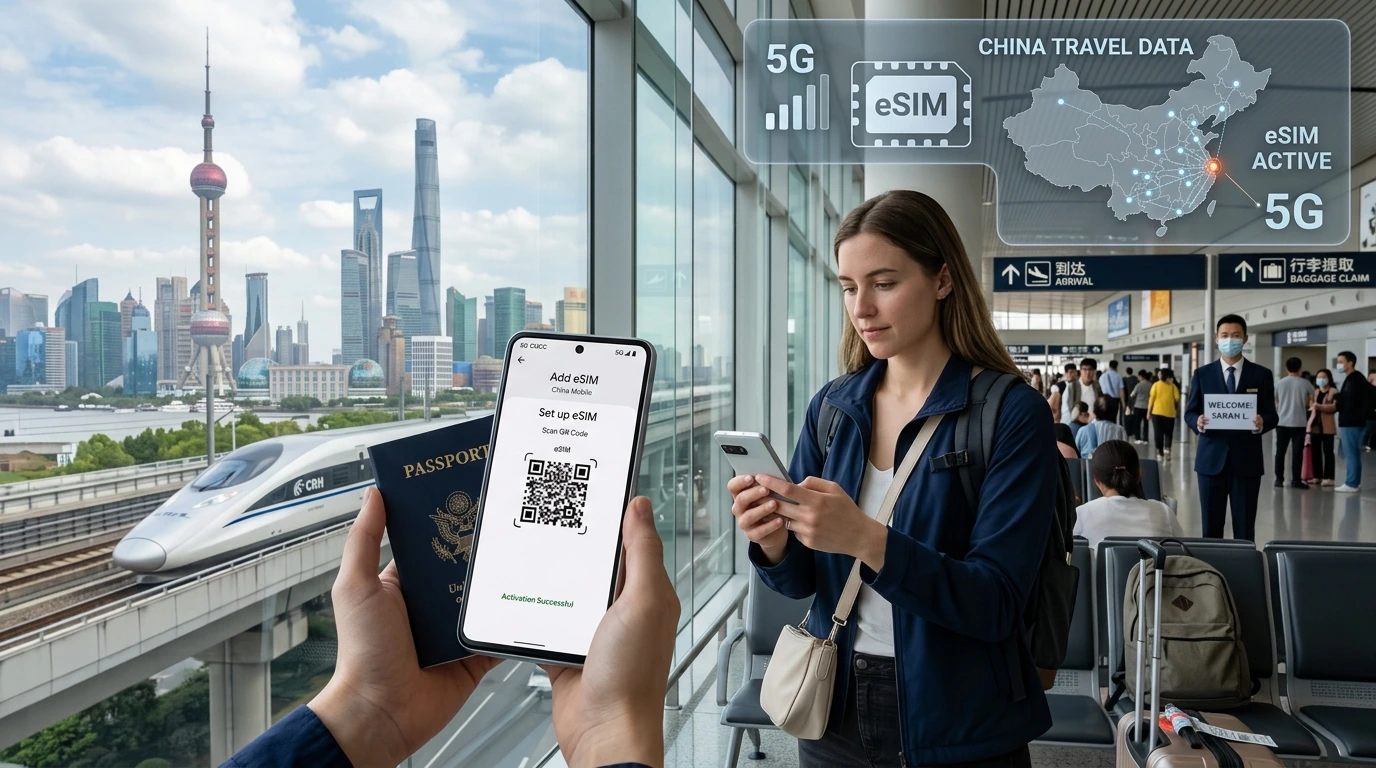
A concise arrival checklist and step‑by‑step guide to get your travel eSIM online within minutes on iPhone, Pixel, Samsung and eSIM‑only phones.
How to activate travel eSIM upon arrival: follow this short, arrival‑focused checklist to be online within minutes and avoid data downtime at the airport.
Quick Answer: On landing, keep Airplane Mode on while you open Settings → Cellular (or Network) → Add eSIM, then scan your NexaEsim QR or paste the activation code, set the eSIM as your data line and enable it — you should be connected within a few minutes. If it doesn’t work, toggle Airplane Mode, try airport Wi‑Fi for the initial setup, or use manual network selection; contact NexaEsim support if needed.
Before you travel — quick prep checklist
- Confirm compatibility and unlock status: check compatible devices for your phone model and ensure your carrier hasn’t locked eSIMs.
- Purchase & store your NexaEsim plan: buy the plan for your destination at the NexaEsim plans page and save the QR/activation code. Start here: eSIM plans for 200+ destinations.
- Install but don’t enable (optional): you may install the eSIM profile before travel for convenience, but avoid switching it on until you arrive unless the plan explicitly supports pre‑activation for that country.
- Save an offline copy: screenshot the QR, activation code, and order number; save as PDF or email to yourself so you can access it without data.
Step‑by‑step activation on arrival (fastest path)
Landing & immediate steps (first 10 minutes)
- Keep Airplane Mode enabled while the aircraft lands to avoid roaming signals.
- If the plan requires, connect to airport Wi‑Fi (some eSIM setups fetch carrier settings during activation).
- Open Settings → Cellular / Network → Add eSIM (or Add mobile plan) and use the QR or activation code you saved.
- After the profile installs, set the NexaEsim profile as your data line (optionally keep your home line for calls/SMS).
- Disable Airplane Mode — your phone should register on a local network and show data bars within a few minutes.
iPhone: Add & enable eSIM
- Open Settings → Cellular → Add Cellular Plan.
- Scan the NexaEsim QR or enter the SM‑DP+ / activation code if provided.
- Name the lines (e.g., “NexaEsim” for data), choose your default voice and data line, and enable the new plan.
- For iOS behavior notes: modern iPhones usually activate quickly; if you see “Activation Failed,” try enabling Wi‑Fi first and reattempt.
Android (Pixel, Samsung, OnePlus): Add & enable eSIM
- Open Settings → Network & Internet (or Connections) → Mobile network → Add carrier / Add eSIM.
- Scan the QR or enter the activation details sent by NexaEsim.
- Assign the eSIM for data and check that your primary voice line remains as you prefer.
- Some OEM menus differ slightly — if you can’t find the option, check NexaEsim installation guide for device‑specific notes.
eSIM‑only devices and special cases
- eSIM‑only phones (no physical SIM slot) function the same; ensure the device supports the destination region’s bands.
- If your phone has multiple eSIM profiles, confirm the active profile is NexaEsim for data and remove any old or unused profiles only if necessary.
If you activated before travel — what to expect
Installing an eSIM before departure is convenient; however, activating it (switching it on) prior to landing can cause issues in some countries or with some plans — you might consume validity time or trigger regional checks. Best practice: install before travel, switch on only after landing unless your plan states pre‑activation is supported.
Common troubleshooting — priority fixes
No signal after activation — quick fixes
- Toggle Airplane Mode off/on.
- Restart the phone after installing the profile.
- Manually select a network in Settings → Mobile networks → Network operators; choose a compatible local carrier if automatic selection fails.
Connected but no data / no calls
- Check APN settings — NexaEsim plans usually auto‑provision APN, but manual APN values can be added in Mobile network settings if needed.
- Confirm you set the NexaEsim profile as the mobile data line and turned off data roaming on your home line to avoid charges.
Reinstall / re‑provision eSIM
- If activation fails repeatedly, remove the eSIM profile and re‑scan the QR or re‑enter the activation code. Only remove if you have the activation details saved offline.
- If the profile still won’t provision, capture screenshots of error messages and try connecting to a different Wi‑Fi network before contacting support.
Country & regulatory caveats (short list)
- Some countries restrict eSIM usage or require in‑person ID verification — China mainland is known for stricter rules in some cases; check local rules before you travel.
- Local carrier policies vary — if a country requires local registration, the eSIM provider will note that on the plan page.
When to contact NexaEsim support (and what to include)
Contact NexaEsim if you’ve tried the quick fixes and remain offline. To speed resolution include:
- Order number and activation code or QR screenshot.
- Phone model and OS version (e.g., iPhone 14, iOS 17.4).
- Screenshots of settings and error messages, and the time/location where you tried activation.
Need a plan right now? Browse available options and instant delivery at NexaEsim plans for 200+ destinations.
NexaEsim features that make arrival activation easier
- Instant delivery: QR and activation codes delivered to your email after purchase.
- Multi‑country plans and single‑country plans for flexibility while traveling.
- Device help and step guides: check our installation guide for screenshots and device steps.
FAQ
Can I activate my travel eSIM before arriving?
Yes, you can install the eSIM profile before travel, but avoid switching it on until you land unless the plan explicitly allows pre‑activation for that destination.
Should I remove my physical SIM when activating an eSIM?
No. Keep your physical SIM as a fallback. You can set the NexaEsim profile for data while leaving voice/SMS on your home line.
How long does eSIM activation take after scanning the QR?
Activation normally completes in a few minutes. If you’re not online in 10–15 minutes, try the troubleshooting steps above.
What if my phone says “Activation failed”?
Reboot, ensure Wi‑Fi is enabled for initial provisioning, confirm your phone is unlocked, and contact NexaEsim with screenshots if the issue persists.
Will my home carrier still charge roaming if eSIM is active?
Possibly. To avoid roaming charges, set mobile data to the NexaEsim profile and turn off data roaming on your home line in Settings.
Related resources & next steps
- Browse NexaEsim plans: eSIM plans for 200+ destinations
- See compatible models: compatible devices
- More tips and updates: visit our blog.
Editorial note: This guide was prepared by the NexaEsim editorial team to help travelers connect quickly on arrival. Procedures reflect common device behavior; always consult your phone maker’s support for device‑specific instructions.
Byline: NexaEsim Editorial Team