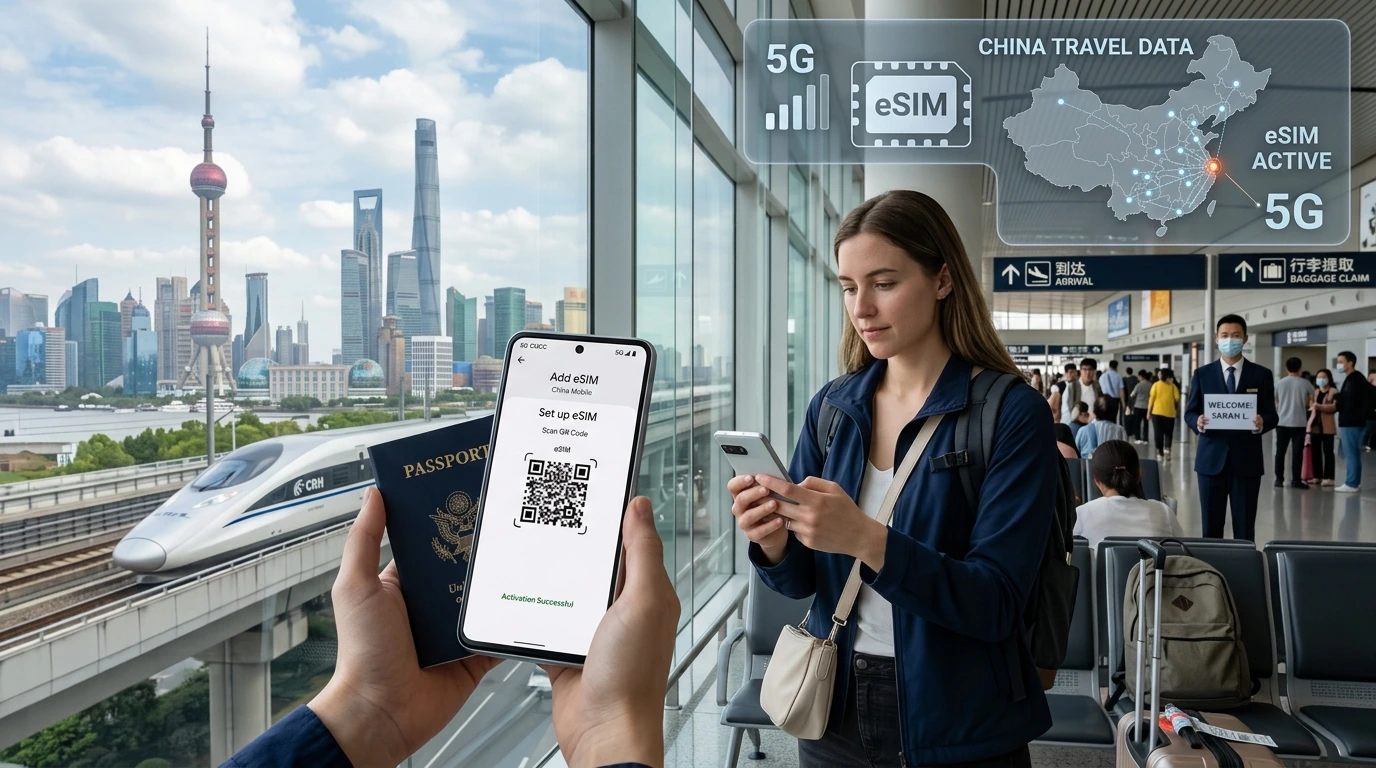
Install your NexaEsim on the phone you’ll travel with 1–7 days before departure, test the install on Wi‑Fi, and activate only when you need service (unless a plan explicitly starts on install).
Quick answer
When should I install my travel eSIM? Install your NexaEsim on the phone you s travel with as soon as you have a stable internet connection (ideally 1 6 7 days before departure) so you can test the profile and fix issues. Don t activate the data plan until you re in the eSIM s coverage area or ready to use it—unless the specific NexaEsim plan states that validity starts on install. Find a NexaEsim plan for your destination.
3 quick steps (snippet):
- Buy and download (install) the eSIM 1 6 days before travel.
- Test the profile on Wi Fi and check device settings.
- Activate (turn on cellular/data roaming) on arrival unless the plan says otherwise.
Install vs activate vs when your plan s validity starts
What "install" means
Install means adding the eSIM profile to your device: scanning a QR, importing a downloaded .esim file, or using the carrier app to add the profile. Installing only stores the digital SIM on your phone; it does not always start your plan s service or countdown.
What "activate" typically means
Activate usually refers to connecting the eSIM to a mobile network so it can send/receive data and SMS. Activation can be automatic when you switch data to the eSIM, or manual if the provider offers a start button. Activation is the action that most often starts your plan s validity period—check the plan details.
How providers define the start of validity
Different providers use different triggers: some start validity on network connection, some on installation, and some on a manual start. NexaEsim plans will note the start rule on the plan details; if you don t see it, contact support before installing.
Recommended timeline — buy, install, activate
Buy 3 6 7 days before departure (or earlier)
Buying a few days in advance gives time for account verification, support help if needed, and allows you to compare plans on NexaEsim s all destinations page. You can also buy earlier—longer lead time reduces last-minute stress.
Install as early as possible (1 6 days before travel)
- Install early to test the profile and confirm the phone recognizes the eSIM.
- Confirm you can see the eSIM in Settings and that the label (e.g., "NexaEsim") appears.
- Keep your QR or download link saved in your account and a local backup (screenshot of the purchase confirmation, not the QR itself).
Activate on arrival (best practice)
Activate when you arrive or when you need mobile data. Activating on arrival prevents wasting plan days. If a plan requires you to connect to a local network to start validity, activate shortly after landing or when the device picks up the network.
Exceptions: plans that start on install
Some plans start their validity timer when the profile is installed. If a NexaEsim plan has that policy it will be shown on the plan page—avoid installing earlier than necessary or contact support for alternatives.
How to install your NexaEsim (step-by-step checklist)
Before you start 6 device & account checks
- Use the phone you will travel with; eSIM profiles are often single-device.
- Update iOS or Android to the latest stable version.
- Ensure you can receive the purchase email and have access to your NexaEsim account.
- Have a reliable Wi Fi connection for download.
Step 1: get install materials
You l get a QR code and installation instructions in your purchase email and in your NexaEsim account. Save the email and do not publicly share the QR.
Step 2: install on iPhone / iPad
- Open the QR email on the device, tap the install link or scan the QR from another device.
- Follow Settings > Cellular > Add eSIM and accept prompts. Label the line (e.g., "Travel").
- Do not switch your cellular data to the eSIM until you want to activate.
See the full step-by-step guide: How to install NexaEsim.
Step 3: install on Android / Pixel / Samsung
- Open Settings > Network & internet > Mobile network > Add carrier (exact path varies).
- Scan the QR or import the .esim file from your NexaEsim account.
- Label the line and keep the eSIM data off until ready.
For device compatibility and limits, check: NexaEsim compatible devices.
Step 4: best-practice tests
- With Wi Fi on, confirm the eSIM profile is visible in settings.
- Switch the phone s primary data to your physical SIM, then back to test a non-live switch (do not turn on data roaming).
- Keep airplane mode handy to prevent accidental connection if you re concerned about starting validity early.
What to do if install fails
- Restart the phone, re-download the QR, or import the .esim file again.
- Try a different Wi Fi network (corporate firewalls can block downloads).
- If problems persist, open a support ticket and include the purchase ID and device model; NexaEsim can reissue install instructions.
Device and configuration notes
Dual SIM configuration & choosing data line
Most modern phones support a physical SIM + eSIM. In Settings, choose which line handles cellular data, calls, and messages. Set your travel eSIM as the data line only when ready to activate.
Data roaming and APN tips
Turn off data roaming on your home carrier if you want to avoid accidental roaming charges. NexaEsim plans usually configure APN automatically; if you need manual APN, consult the installation guide.
How to prevent accidental activation
- Keep the eSIM data line turned off until arrival.
- Use airplane mode while testing the installed profile.
- Label your eSIM clearly (e.g., "NexaEsim - Spain") to avoid switching lines by mistake.
Multi-country trips and validity planning
Regional plans vs country plans
For multi-country trips, choose a regional plan that covers all countries on your itinerary to avoid switching or wasting separate-country plans. Activate such plans when you arrive in the first covered country unless the plan rules require a different trigger.
Crossing borders
If your trip crosses borders quickly (same day), activate when you first need data in the covered region. For staggered stops, consider separate country plans activated on arrival in each country.
Security, switching devices, and loss recovery
Can I move an eSIM to another phone?
Moving an installed eSIM between phones depends on provider policy and device support. Some NexaEsim plans may be single-install; if you need to switch devices, contact NexaEsim support to learn available options.
QR code security
Treat the QR code like a password. Do not post it publicly or send it over unsecure channels. If the QR is compromised, ask NexaEsim to reissue the profile or cancel the compromised install.
How NexaEsim support can help
If you accidentally started a plan early or lose access to your QR, contact NexaEsim support via the support link on your account page (or see our blog for common fixes). Support can confirm your plan s start rule and advise next steps.
Troubleshooting common problems
My eSIM won t connect — quick checklist
- Confirm the eSIM profile is present and selected as an active data line.
- Restart the phone and toggle airplane mode on/off.
- Check APN settings and ensure data roaming is enabled if required by the plan.
- Try manual network selection if automatic registration fails.
My plan started too early — next steps
Contact NexaEsim support immediately with your purchase ID and device model. Remedies depend on plan terms; support can confirm if any adjustments or reissues are possible.
I can t scan the QR — alternate manual install
Use the manual activation code or the .esim download link in your NexaEsim account. If your device supports file import, download the .esim and import it via Settings.
Final checklist before you travel
- Buy your NexaEsim plan on Find a NexaEsim plan for your destination.
- Install the eSIM on the phone you re taking (1 6 days before travel).
- Test the profile on Wi Fi; do not enable cellular data until ready.
- Confirm device compatibility at NexaEsim compatible devices.
- Keep purchase confirmation and installation instructions saved locally.
Editorial note / Byline
By NexaEsim Support — Last reviewed: 2026-05-21. This article explains general best practices; always check the specific NexaEsim plan page for exact "validity start" rules and reach out to support for plan-specific questions.
FAQs
Will installing my eSIM start my plan?
Usually no, but it depends on the plan. Many NexaEsim plans start on network connection or manual activation; check the plan details before installing.
Can I install my eSIM on a different phone and move it later?
Some eSIMs are single-install and tied to one device. Contact NexaEsim support to confirm moving rules for your purchased plan.
Do I need Wi Fi to install an eSIM?
Yes—Wi Fi is recommended for downloading the profile and avoiding use of your home carrier data during testing.
When should I activate my eSIM?
Activate on arrival or when you re ready to use data, unless the plan explicitly starts on install. For multi-country plans, activate in the first country you use the service.
How long before travel should I buy an eSIM?
3 6 7 days is recommended to allow testing and troubleshooting; buying earlier is fine and gives more options.
What if my plan started early by mistake?
Contact NexaEsim support with your purchase ID immediately. Remedies vary by plan terms and support capacity.
Will installing consume my home carrier data?
Only if you download or test the profile while connected to your home mobile data. Use Wi Fi to avoid this.
Can I tether from an eSIM?
Tethering is generally allowed but depends on the plan terms. Check the plan details or contact support if tethering is essential for your trip.
How do I re-install or recover an eSIM?
Open a support ticket and include your purchase details; NexaEsim can provide reissue instructions or a new install link where allowed.
Where to go next
Ready to pick a plan? Find a NexaEsim plan for your destination. For step-by-step installation visuals, visit our installation guide and check device limits at compatible devices. For the latest tips and product updates, see the NexaEsim blog.