Practical setup and troubleshooting for running a travel eSIM alongside your physical SIM — device checks, step‑by‑step activation, and NexaEsim plan advice.
Dual SIM with travel eSIM setup lets you use a local travel eSIM alongside your home physical SIM or run two eSIMs — this guide shows what to check, how to install, and how to avoid common pitfalls before and during travel.
Quick Answer
One‑line summary
Most modern phones support a travel eSIM plus a physical SIM (or two eSIMs). Install the eSIM by scanning the QR or using the NexaEsim app, label each line, set default voice/data, and enable data switching if you need data during calls. Test everything before you fly.
Which Dual SIM setup is right for you?
There are two common travel configurations: a physical SIM (your home carrier) plus a travel eSIM, or two eSIMs (no physical SIM). Choose based on convenience, handset support, and whether you need your home number to receive calls and SMS while abroad.
Physical SIM + eSIM: pros & cons
- Pros: Keep your home number active for calls/SMS, easy fallback to home carrier for emergency or banking codes.
- Cons: Your home SIM may incur roaming charges if data roaming is left on — remember to disable roaming for the home line if you don’t want charges.
Dual eSIM (two eSIMs): pros & cons
- Pros: No physical SIM slot needed, simpler to swap providers, often faster activation via app/QR.
- Cons: Not all phones allow two active data sessions simultaneously; some devices place restrictions on calls while using a secondary data line.
When to keep your home SIM active
If you expect important SMS (banking, 2FA) or need incoming calls to your regular number, keep the home SIM active but disable data roaming. Alternatively, forward or port critical services before you leave.
Compatibility checklist: devices, OS, and carrier requirements
Before buying a NexaEsim plan, verify your phone model, OS version, and carrier lock status.
iPhone models & iOS notes
- Most iPhone XS and later support eSIM + physical SIM or dual eSIM (model-dependent). Verify your model in Settings > General > About.
- iOS names may vary by version: look for "Cellular" or "Mobile Data" settings. Some features (like "Allow Cellular Data Switching") appear in iOS 13+; always check your OS release notes for the latest label names.
Android models (Pixel, Samsung, others)
- Google Pixel and recent Samsung Galaxy models commonly support an eSIM and a physical SIM or dual eSIM — but menu names differ: look under Settings > Network & Internet or Connections.
- Android vendors may limit simultaneous active lines; check your vendor support pages for specifics.
Carrier‑unlocked phone and corporate SIM caveats
Your phone must be carrier‑unlocked to activate a third‑party travel eSIM. Corporate or enterprise‑managed devices sometimes restrict adding profiles; check with IT before purchasing a NexaEsim plan.
Before you travel: preparation checklist
- Confirm device compatibility — check compatible devices.
- Buy and install your NexaEsim plan before boarding so you can test — browse NexaEsim plans for 200+ destinations.
- Backup contacts, enable Wi‑Fi Calling for your home line if supported, and disable data roaming on your home SIM to prevent unexpected charges.
- Note emergency numbers for destinations and save them offline.
Download NexaEsim plan and test before landing
Install the eSIM at home using Wi‑Fi and verify data, incoming/outgoing calls, and SMS where applicable. Testing avoids activation delays at arrival and lowers travel anxiety.
Step‑by‑step: Set up a travel eSIM with your physical SIM (iPhone)
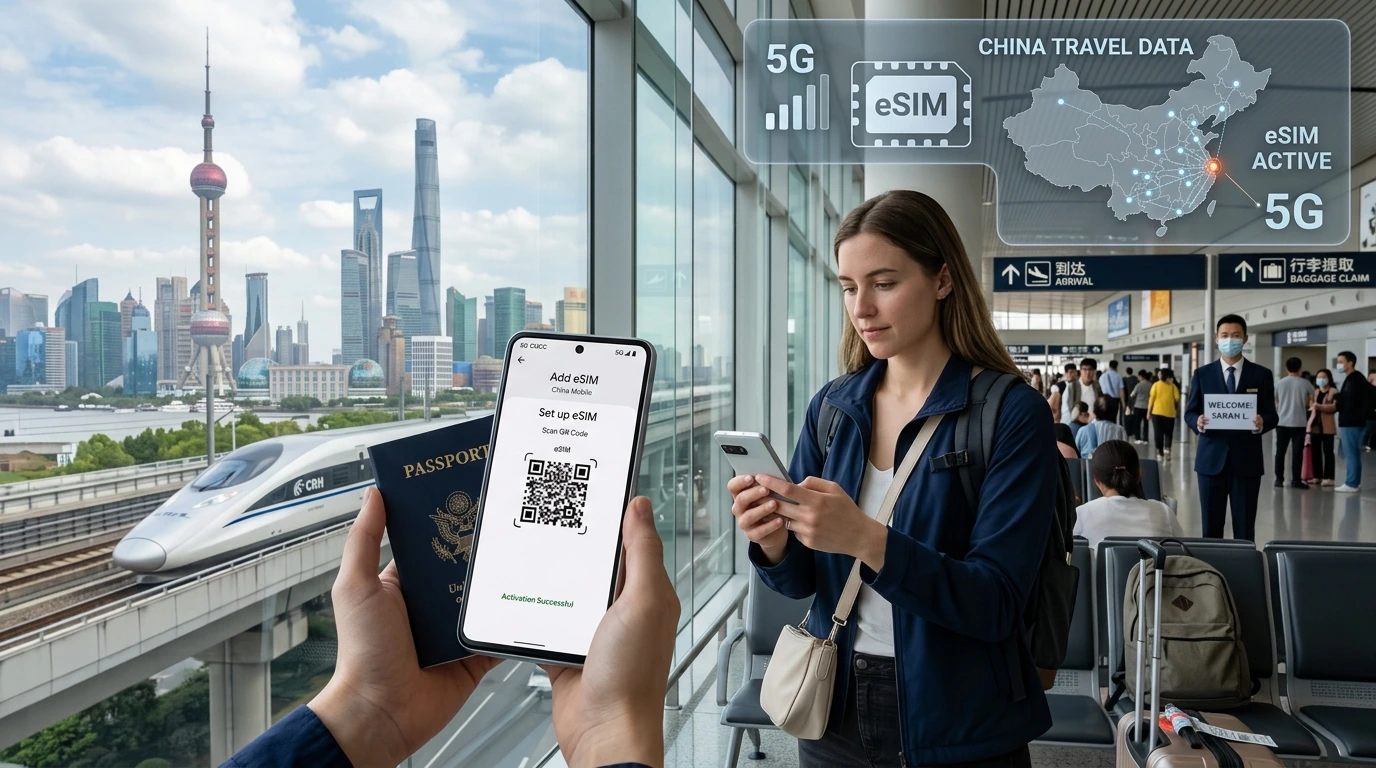
Add cellular plan: scan QR / use NexaEsim app
- Open Settings > Cellular (or Mobile Data) > Add Cellular Plan.
- Scan the QR code provided by NexaEsim, or open the NexaEsim app and follow the in‑app activation flow to add a profile to your device.
- If the QR fails, choose "Enter Details Manually" and paste the SM-DP+ or activation code from the NexaEsim confirmation email.
Label your plans and choose defaults (voice, SMS, data)
- After installation, label each plan (e.g., "Home" and "Travel").
- Set your default line for voice calls and SMS, and set the data line separately (Settings > Cellular > Cellular Data).
Allow Cellular Data Switching and what it does
On iPhone, "Allow Cellular Data Switching" lets your phone temporarily use the other line for data during voice calls. Enable it if you want internet access while on a call that uses your non‑data line.
Test calls, SMS, and data before leaving
- Make/receive a call, send an SMS to confirm SMS routing, and load a webpage to confirm data connectivity.
- If iMessage or WhatsApp uses your home number, open those apps and verify the active number settings.
Step‑by‑step: Set up on Android (Pixel / Samsung / Generic)
Add carrier via Settings / QR / app
- Open Settings > Network & Internet (or Connections) > SIMs or Mobile Network > Add carrier.
- Scan the NexaEsim QR code or use the NexaEsim app to install the profile.
- If manual install is needed, choose "Add using activation code" and enter the provided SM‑DP+/activation details.
Set default voice & data, per‑app data settings
Choose a default line for calls and set the preferred data SIM. Some Android skins let you restrict which line an app uses — useful to keep banking apps on the home line for 2FA.
Network selection & manual carrier choice if needed
If the eSIM doesn't attach automatically, try manually selecting the local carrier in Mobile Network > Carrier to force registration.
How to use two eSIMs (no physical SIM)
Many recent phones support two active eSIM profiles, but only one may be used for data at a time depending on the chipset. Activate both profiles via QR or app and label them clearly. Keep an emergency plan (SIM or eSIM) if you rely heavily on one number for critical messages.
Troubleshooting common issues
eSIM activation fails / invalid QR
- Make sure the QR or activation code is complete and hasn't been used already. Re-download the activation info from your NexaEsim account if needed.
- Try activation over a stable Wi‑Fi connection; some carriers block activations over certain networks.
No service or “No SIM” on secondary line
Confirm the eSIM profile is enabled in settings and the device is unlocked. Restart the phone after installing an eSIM to clear registration issues.
SMS not delivered / iMessage & WhatsApp issues
iMessage and some apps may default to your primary number. In iMessage/Apple ID settings, ensure the number you want is active. For WhatsApp, verify the account uses the correct verified number.
Data not working while on call
On iPhone enable "Allow Cellular Data Switching". On Android, some devices support Voice over LTE (VoLTE) with simultaneous data — otherwise, enable LTE and test if your device supports concurrent voice/data.
Best practices & travel scenarios
Short trip vs multi‑country itinerary
For single‑country short trips, buy a country pack. For multiple stops, choose a multi‑country pass to avoid repeated purchases. See recommended packs on the NexaEsim plans page before buying.
Business traveler: keep home number reachable
Keep your home SIM active for critical calls and disable data roaming; set data to the travel eSIM. Forward calls if needed or enable Wi‑Fi Calling for the home line.
NexaEsim plans: which to buy and when
NexaEsim offers single‑country and multi‑destination plans covering 200+ destinations — choose by trip length and country list. Buy and install your selected plan from the product list, then activate and test before departure: browse NexaEsim plans for 200+ destinations.
FAQs
Can I use an eSIM and a physical SIM at the same time?
Yes — most modern phones allow a physical SIM and one eSIM to be active concurrently. After installing the eSIM, label both lines and choose which one is used for data, voice, and SMS.
Can I use two eSIMs at once?
Many devices support two eSIM profiles, but simultaneous use rules vary by model. Some phones allow two active lines but only one data connection. Check your device settings and test both profiles before travel.
Do I need an unlocked phone for NexaEsim?
Yes — your phone should be carrier‑unlocked to add third‑party eSIM profiles. Enterprise‑managed phones may block adding profiles, so verify with your carrier or IT department.
How do I set my default data and voice lines on iPhone?
Go to Settings > Cellular (or Mobile Data). Under Cellular Plans select the plan you want for "Default Voice Line" and set "Cellular Data" to your preferred plan. Use "Allow Cellular Data Switching" if you want data access during calls on the other line.
What does “Allow Cellular Data Switching” do?
It allows your device to temporarily use the other active line for data when your current data line is engaged in a call. Useful for staying online during voice calls that use the non‑data line.
Editorial note / byline
Updated: May 2026 — NexaEsim Product & Support Team. Confidence note: this guide is built from device vendor guidance and travel eSIM best practices; check device menus and NexaEsim support articles for any OS label changes.
Further reading: NexaEsim installation guide · NexaEsim blog