Most modern Android phones support international eSIMs, but model, regional variant and carrier locks matter. This guide shows how to verify support, install a travel eSIM, troubleshoot common problems and find NexaEsim plans.
Quick answer
Does Android support international eSIM? Quick Answer: Yes — most modern Android phones can use international eSIMs, but support depends on your exact model, its regional/carrier variant and whether the device is unlocked.
What is an eSIM and how it works on Android
An eSIM (embedded SIM) is a programmable SIM built into your phone that stores one or more operator profiles instead of a physical card. On Android, the OS exposes eSIM features as "Digital SIM," "Add eSIM" or "Download a SIM" in network settings. The device stores an EID (embedded ID) — similar to an IMEI — which providers use to deliver profiles.
eSIM vs physical SIM (quick comparison)
- Convenience: eSIM can be added remotely (QR or activation code) — no SIM eject needed.
- Flexibility: store multiple profiles and switch between plans without swapping cards.
- Limitations: some travel eSIMs are data-only; voice/SMS depends on plan and local operator.
Which Android devices commonly support eSIM?
Many recent flagships and midrange models from Google (Pixel), Samsung (Galaxy), OnePlus, and some Xiaomi/OPPO devices include eSIM support. However, model lists vary by market and carrier — for example, some China/Hong Kong variants omit eSIM. Always verify for your exact model.
For device-specific setup and manufacturer guidance, see your maker’s support pages or check our compatible devices resource if available.
Regional and carrier caveats
- Carrier-locked phones may block third-party eSIMs — you typically need an unlocked device to add a travel eSIM.
- Some countries or carriers limit eSIM provisioning or roaming. Check local rules before you travel.
How to check if your Android phone supports eSIM (step-by-step)
- Open Settings → Network & Internet (or Connections) and look for “Add eSIM,” “Download a SIM” or “Digital SIM.”
- Dial *#06# — if an EID appears alongside IMEI, your device likely has eSIM hardware.
- Search your exact model on the manufacturer's support site for the words “eSIM” or “embedded SIM.”
- Confirm the device is carrier-unlocked (contact your home carrier or check account settings).
Quick verification checklist
- Do you see an “Add eSIM” option in Settings? → If yes, proceed to activation.
- Does *#06# show an EID? → If yes, hardware is present.
- Is your phone unlocked? → If no, request an unlock from your carrier.
How to install and activate a travel eSIM on Android
Requirements
- An eSIM-capable and carrier-unlocked Android phone.
- Wi‑Fi or mobile data to download the eSIM profile during activation.
- QR code or activation code from the eSIM provider (or their app).
Standard activation steps
- Buy a travel eSIM from a provider (for NexaEsim plans, see our plans for destinations).
- Receive a QR code or activation code by email or in-app.
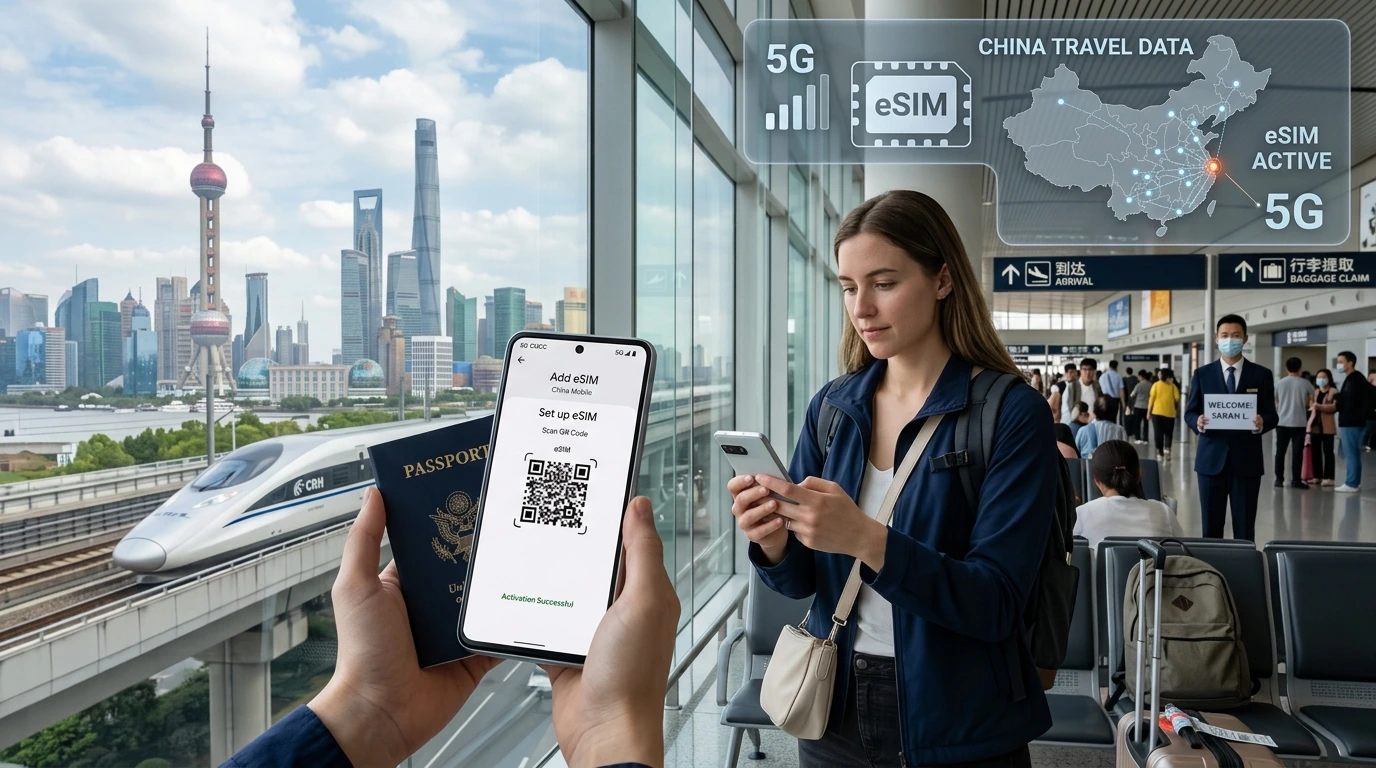
- On Android: Settings → Network & Internet → Mobile network → Add carrier (or Add eSIM). Choose “Scan QR code” or enter the activation code manually.
- Download the eSIM profile and set the line for data/calls as needed.
Tip: Keep your home SIM active until you confirm the eSIM works in the destination network. You can usually keep both active for calls/data depending on the phone.
Managing multiple profiles
- Many Android phones can store multiple eSIM profiles; active profile count and simultaneous active lines vary by device.
- In Settings → SIMs or Mobile networks you can choose which line handles data, calls and SMS.
Limitations, restrictions and common issues when traveling
Country and carrier restrictions
Some countries or local operators restrict eSIM activation or roaming. If you plan to use an eSIM in a specific country, check both the local regulator and the operator’s policy. NexaEsim lists country coverage on our plans page (see available destinations).
Data-only plans and voice/SMS
Many travel eSIMs are data-only. If you need local voice/SMS, confirm the plan supports it or use Wi‑Fi calling/VoIP apps as a workaround.
Troubleshooting checklist
- Activation failed: Re-scan the QR, ensure you used the correct activation window/timezone and have working Wi‑Fi during installation.
- No network after activation: Toggle Airplane mode, restart the phone, and verify APN and roaming settings in Mobile network options.
- Slow or no data: Check the plan's speed (4G/5G support), choose a manual network operator in settings, or confirm the destination operator accepts roaming from your eSIM provider.
- Carrier lock: contact your home carrier to unlock the phone before using a third-party eSIM.
Benefits of using an eSIM for international travel
- Instant activation — buy and install before you board the plane.
- No physical SIM swap — no risk of losing a tiny card.
- Store multiple country profiles — switch between destinations without buying local SIMs at each stop.
- Improved security — no exposure of a physical SIM when handing a phone to customs/repair shops.
How to pick the right travel eSIM plan
- Choose single-country plans if you need lots of data in one place; pick multi-country or global plans for multi-stop trips.
- Check duration, data allowances, and whether 4G/5G is supported in your destination.
- Confirm whether the plan is data-only or supports voice/SMS.
NexaEsim: coverage & how we support Android travelers
NexaEsim offers instant travel eSIM plans for many countries. You can search and buy plans for your destination on our plans page: Find NexaEsim plans. After purchase we deliver a QR or activation code so you can add the eSIM before you travel.
Support options include step-by-step guides and live chat; see our installation guide for detailed setup instructions. For related tips and news, visit the NexaEsim blog.
Pre-travel checklist for Android users
- Verify eSIM support (Settings and *#06# check).
- Confirm your phone is carrier-unlocked.
- Buy and install NexaEsim before your flight if you want instant connectivity on arrival (browse plans).
- Save backup access (screenshot of activation or keep the provider email).
Frequently asked questions
Does every Android phone support eSIM?
No. Many modern Android phones do, but some older or region-specific models do not. Always check the Settings menu and the manufacturer support page.
How do I check if my Android phone has an EID?
Dial *#06# and look for an EID entry, or go to Settings → About phone → SIM status. If you see an EID, your device has eSIM hardware.
Can I use my home number and an eSIM at the same time?
Yes, if your phone supports dual SIM (physical + eSIM or dual eSIM). Configure which line handles data, calls and SMS in Settings → SIMs.
Do eSIMs support voice calls and SMS abroad?
It depends on the plan. Many travel eSIMs are data-only. Check the plan page details; you can use VoIP apps or enable roaming on your home line for calls.
What if my Android phone is carrier-locked?
If it’s locked, request an unlock from your carrier before trying to add a third-party eSIM. Some carriers may also allow eSIMs but restrict third-party providers.
Where to get more help
For device-specific issues, consult your manufacturer’s support pages. For NexaEsim purchases, activation help and troubleshooting, visit our plans and support page or the installation guide. Our support team is available by chat to help with activation and APN settings.