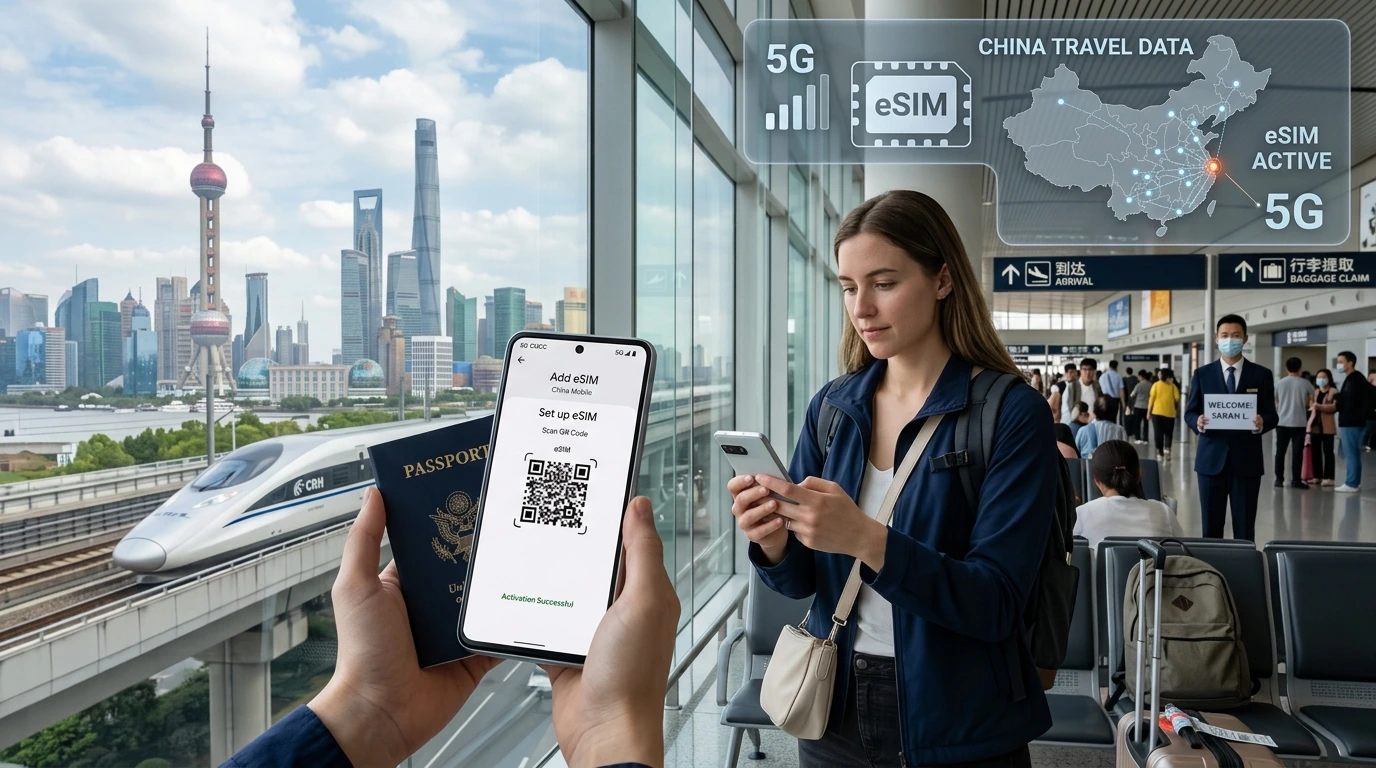
Learn how to check if your device supports travel eSIM, region SKU caveats, activation steps for iOS/Android/Windows, and browse NexaEsim plans for 200+ destinations.
Devices compatible with travel eSIM are increasingly common across phones, tablets, smartwatches and WWAN-enabled laptops — this guide shows how to verify support, prepare your device, and install a NexaEsim plan for travel.
Quick Answer: Most modern iPhone, Pixel, Samsung and many Android devices include an EID in Settings (or return an EID via *#06#). Confirm your model SKU and that the device is carrier-unlocked, then install a NexaEsim plan for your destination. Ready to pick a plan? Browse NexaEsim plans for 200+ destinations.
Quick check — Is my device eSIM compatible?
Two fast checks
- Settings method: On iPhone go to Settings > General > About and look for EID. On most Android devices open Settings > About phone (or Connections) and search for EID or eSIM information.
- Dial method: Dial
*#06#. If the device shows an EID in addition to the IMEI, it has an eUICC capable of storing eSIM profiles.
What the checks tell you
- EID present = hardware support for eSIM (eUICC).
- Model/SKU matters: some region-specific SKUs (for example certain China/Hong Kong/Macau variants) may lack eSIM despite identical model names.
- Carrier lock: even with EID, a carrier-locked device may block third-party eSIM activations — check with your carrier.
Compatibility at a glance — devices that commonly support travel eSIM
Apple: iPhone & iPad
Most iPhone models from iPhone XS / XR onward and cellular iPads from recent generations support eSIM. Always check Settings > General > About for an EID and verify the country SKU if you bought the phone in China, HK, or other markets with known exceptions.
Android phones
Major brands with broad eSIM support include Google Pixel, Samsung Galaxy (select models), OnePlus, and newer Xiaomi/Oppo/Vivo devices. Support varies by model and market; use the Settings/EID check and consult the manufacturer's support pages.
Tablets, hotspots, smartwatches and laptops
- Tablets: Many LTE/5G tablets from Apple, Samsung and Lenovo offer eSIM.
- Smartwatches: Several Apple Watch models and Wear OS watches support cellular eSIM profiles.
- Laptops: Windows 10/11 WWAN modules and some Surface/ThinkPad models support eSIM activation.
- Mobile hotspots and car infotainment: Increasingly available; check vendor documentation for EID and eUICC support.
For a browsable list and an interactive checker (coming soon) see our compatible devices hub and installation steps.
See compatible device notes and follow device-specific activation instructions in our guide.
Important caveats for travelers
Region / SKU differences
Phones sold in different countries can have different radio hardware and firmware. Notably, some models sold in China, Hong Kong and Macau ship without eSIM even when the same model sold elsewhere includes it. Always verify the SKU and EID.
Carrier locks and activation policies
Many carriers allow eSIMs only on unlocked devices or require activation steps from the carrier. If your phone is locked to a carrier, request an unlock before your trip.
Profiles vs active eSIMs
Devices differ in how many eSIM profiles they can store and how many can be active at once. For example, some phones store several profiles but only allow one active cellular plan per modem plus a physical SIM. Check your model notes and back up profile details before travel.
Using eSIM and a physical SIM together
Many devices support simultaneous use of one physical SIM and one eSIM (dual‑SIM mode), which is ideal for using a local NexaEsim data plan while keeping your home number active for calls/2FA. Behavior varies by model — test before departure.
How to prepare your device for a NexaEsim travel eSIM
Pre-trip checklist
- Confirm EID in Settings or via
*#06#. - Verify the device is carrier-unlocked.
- Update the OS to the latest stable release for best compatibility.
- Back up your device and copy any existing eSIM or carrier details you may need to restore.
- Save your EID and IMEI in a note or take a screenshot for activation forms.
Step-by-step activation (iOS)
- Buy a NexaEsim plan at our plans page and note the QR or activation code.
- Open Settings > Cellular > Add Cellular Plan and scan the QR or enter the code.
- Label the plan (e.g., Travel – Spain) and set voice/data preferences.
- Turn on the travel plan when you arrive; use Airplane Mode + Wi‑Fi toggle if you need to force registration to local networks.
See our detailed installation guide for screenshots and troubleshooting.
Open the installation guide for step-by-step images and common fixes.
Step-by-step activation (Android / One UI / Pixel)
Paths vary: look for Settings > Network & internet > SIMs or Mobile network > Add carrier (or similar). Scan the NexaEsim QR or input the activation details provided after purchase. For Pixel devices, use Settings > Network & internet > Mobile network.
Windows laptops & other devices
Windows WWAN devices use Settings > Network & Internet > Cellular > Manage eSIM profiles. Some devices require vendor tools or driver updates. Check the laptop vendor page for WWAN/eSIM instructions.
Common activation issues & fixes
- QR fails to scan: enter the activation code manually.
- EID mismatch: confirm the EID shown in Settings matches the EID we list in the activation prompt.
- No network after install: toggle Airplane Mode, restart, and ensure the correct profile is active for data.
- Carrier rejection: contact the carrier if the device is locked or requires an unlock code.
Interactive compatibility checker & downloadable matrix
We are rolling out a searchable device checker (filter by brand, model and country of purchase). Meanwhile, use the checks above and contact support with your model/SKU for verification. If you want to compare plans after you confirm compatibility, browse NexaEsim plans.
Which NexaEsim plans work with my device and destination?
How to pick the right plan
For short trips, single-country data plans are usually cheapest. For multi-stop itineraries choose regional or global passes. Ensure the plan supports the mobile generations your device uses (4G/5G). After confirming device compatibility, visit our plans page to compare options.
Ready to buy? Browse NexaEsim plans for 200+ destinations.
Frequently asked questions
How can I quickly tell if my phone supports eSIM?
Open Settings > About (iOS/Android) and look for EID, or dial *#06# and check for an EID entry. If present, the device supports eSIM hardware; verify SKU and unlock status before purchase.
Does my iPhone purchased in another country support eSIM?
Possibly—many iPhones support eSIM but some regional SKUs (notably certain China/HK/Macau variants) may not. Confirm by checking EID in Settings and the exact model number.
Do I need an unlocked phone to use NexaEsim?
Yes. Most third-party eSIM activations require an unlocked device. Contact your carrier to request an unlock if needed.
How many eSIM profiles can my device store and how many can be active?
Storage and active limits vary by model. Many devices store multiple profiles but allow only one active eSIM plus a physical SIM. Check your device notes and test before travel.
Can I use an eSIM and a physical SIM at the same time?
Yes—most modern devices support one physical SIM and one eSIM in active use. However, exact behavior (voice/data routing, dual standby) varies by model and firmware.
What if the eSIM profile fails to install while I’m traveling?
Try manual code entry, restart the device, toggle Airplane Mode, or connect to Wi‑Fi before installing. If issues persist, contact NexaEsim support with your model, IMEI/EID and a screenshot of the error.
Sources & last verified
Primary verification: manufacturer support pages (Apple, Google, Samsung), GSMA eSIM specifications, and NexaEsim device tests. Last full verification: 2026-05-20. For detailed device-by-SKU checks, contact support or use our compatibility checker when available.
Editorial note: this page is a living document updated monthly to reflect new device launches and regional firmware changes.