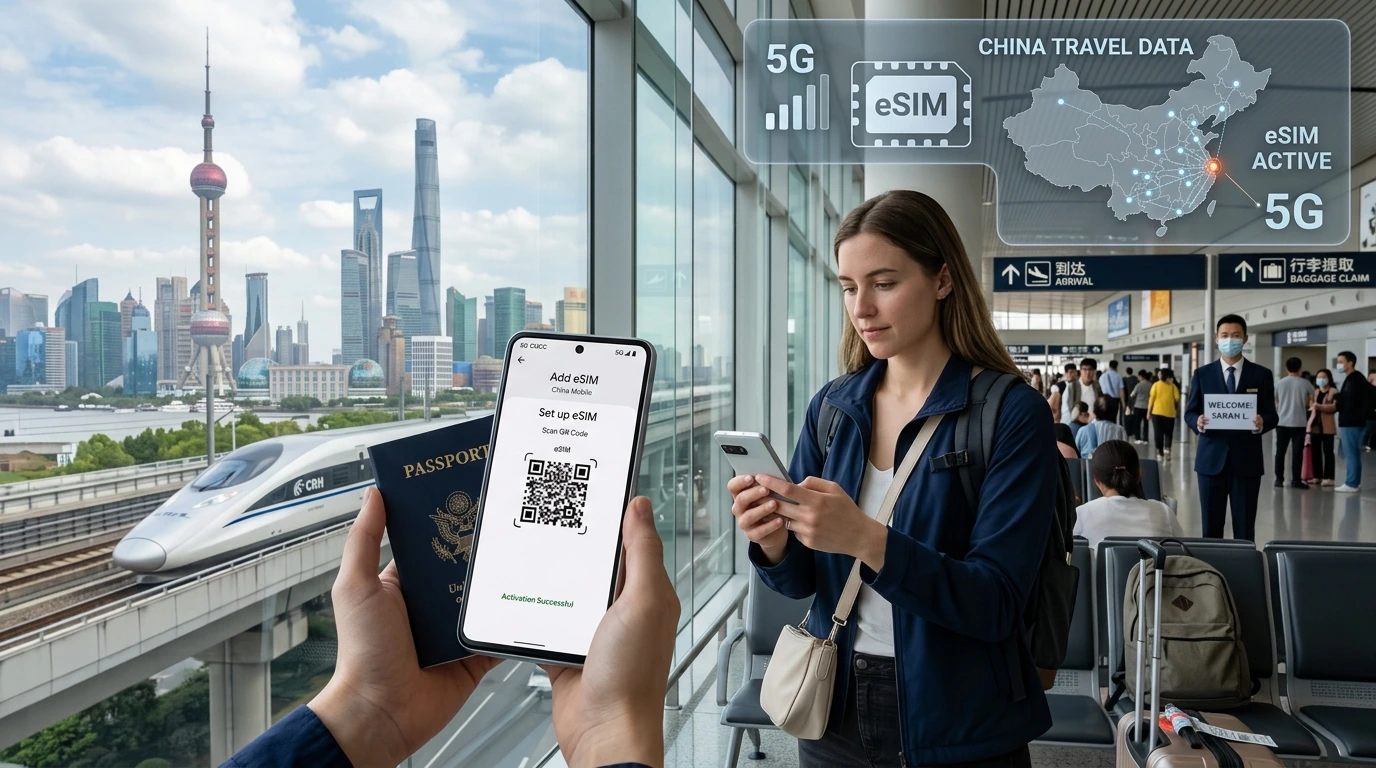
Short answer: Yes — most iPhones support eSIM while traveling. Check device model and unlock status, choose roaming or a travel eSIM, install via QR/app/manual, and use NexaEsim to compare plans across destinations.
Can I use eSIM on iPhone while traveling? Yes — in most cases you can use an eSIM on your iPhone while traveling, as long as your device supports eSIM and either your phone is unlocked or your home carrier allows roaming.
Quick answer
Yes — provided three things: (1) your iPhone model supports eSIM, (2) the phone is unlocked (or your carrier permits roaming), and (3) you buy or activate an eSIM that works in your destination. You can keep your home number active and use a travel eSIM as a secondary data line. See full steps below.
Do I need to check device & carrier first?
Before buying any travel eSIM, confirm two items: device compatibility and carrier lock status.
Which iPhone models support eSIM?
- Apple has supported eSIM on iPhone since iPhone XR and XS; most modern iPhones (XS/ XR / 11 / 12 / 13 / 14 / 15 and later) support at least one eSIM. Some newer models and regional SKUs may use eSIM-only configurations—check your model and region.
- For a full device compatibility list and model details, see our compatible devices page: NexaEsim — compatible devices.
Is my iPhone unlocked?
If your phone is locked to a carrier, that carrier may also restrict eSIM activation with other providers. Check your unlock status (Settings > General > About — look for "Network Provider Lock" or contact your carrier). If locked, ask the carrier for an unlock before traveling.
Special country/device exceptions
Certain countries have unique rules (China mainland and some regional models are frequently cited). When traveling to regions with special regulations, check local carrier rules and Apple’s regional notes.
How eSIM works for travel — roaming vs local eSIM vs global eSIM
Roaming with your home carrier (pros/cons)
- Pros: Keeps your phone number and billing simple; no setup on arrival.
- Cons: Often expensive unless you have a roaming package; coverage and speeds depend on home-carrier agreements.
Buying a local carrier eSIM after arrival
- Pros: Usually cheapest for longer stays and gives a local phone number (if offered).
- Cons: May require local ID or in‑person activation; limited to one country or region.
Purchasing global or regional travel eSIMs
Global and regional travel eSIMs (including NexaEsim plans) let you buy one data plan that works across many countries—convenient for multi-country trips. They’re typically instant to activate and don’t need a physical SIM swap.
Step-by-step: How to buy & activate a travel eSIM on iPhone
Below is a simple checklist and activation options. We recommend installing a travel eSIM before you fly when possible.
Pre-installation steps (before you leave)
- Confirm model and unlock status (see earlier section).
- Buy a travel eSIM from a reputable provider—check coverage for your destination: Check NexaEsim plans & coverage.
- Ensure you have Wi‑Fi to download the eSIM, or plan to activate on arrival where you have data.
Activation methods: QR code / carrier app / manual (SM‑DP+)
Most travel eSIMs use one of three activation flows:
- QR code: Scan with Camera > follow prompts in Settings > Cellular > Add Cellular Plan.
- Provider app: Install the eSIM provider’s app and follow in‑app activation (common for NexaEsim).
- Manual SM‑DP+ entry: Enter activation code or SM‑DP+ details in Settings if provided.
For step‑by‑step screenshots and a full install walkthrough, see our installation guide: NexaEsim installation guide.
Which line to set as Cellular Data / iMessage/FaceTime tips
- iPhone lets you set which line is used for cellular data; set the travel eSIM as your data line to avoid roaming charges on your home line.
- iMessage/FaceTime remain tied to the Apple ID; you can receive messages on your home number if that plan stays active.
iOS behavior notes
iOS manages multiple lines and data priorities. Newer iOS versions include